Additional Maintenance Downloads
These are some miscellaneous downloads to help with your printer. I’ll probably organize them into categories once the library grows, but since we only have the most common files right now, it shouldn’t be too hard to scroll and find what you need.
Every file here is a pre-made printer test PDF with a preview so you know exactly what you’re getting. No registration, no forms, and no extra hassle—just click and download. I kept it quick and easy on purpose! If these help you fix your print quality, I’d love it if you’d recommend the site to a friend.
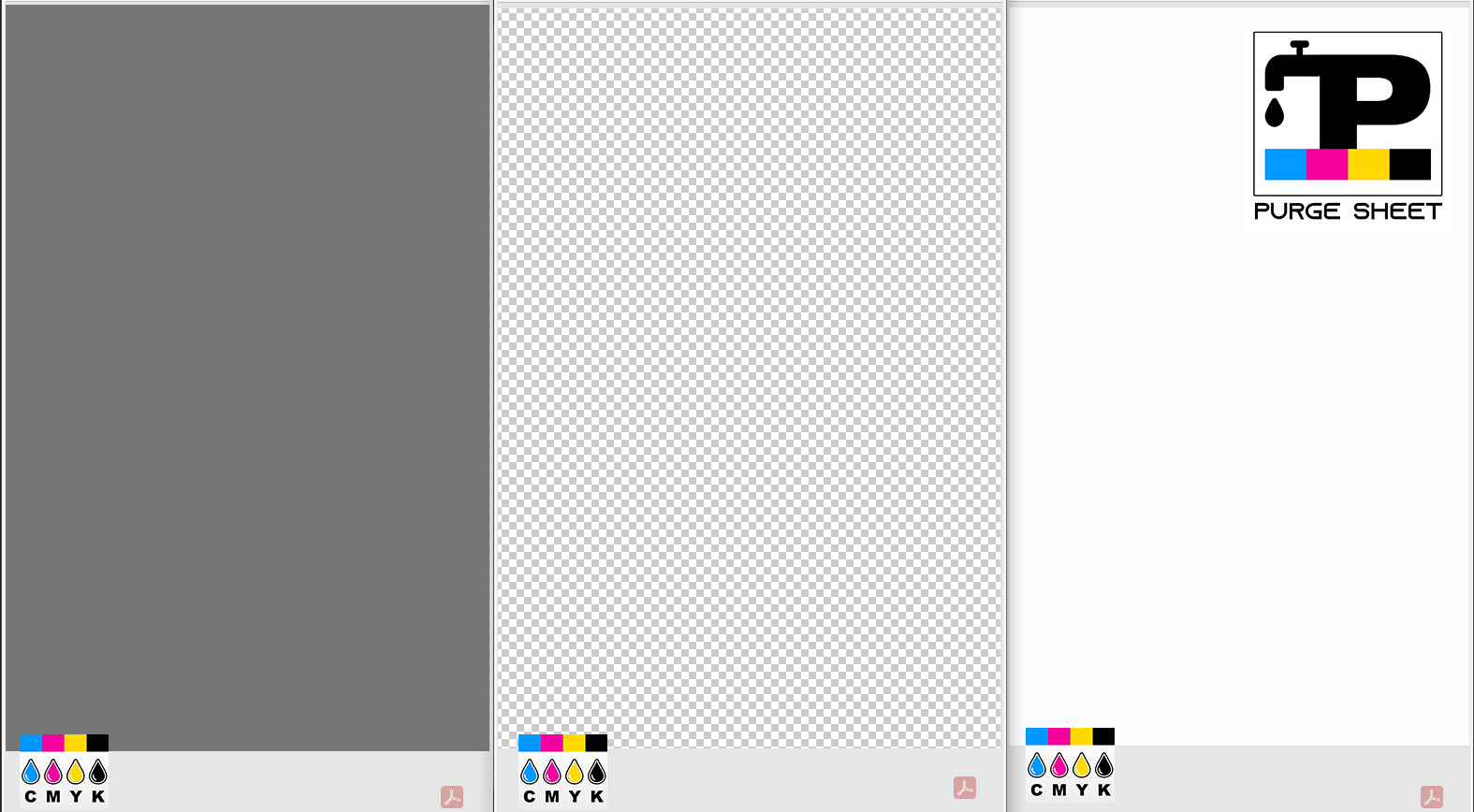
Printable PDF page preview:
In this preview, PDF transparency is not indicated with a checkered pattern, so it may appear to have a white background, but it is actually transparent.

Blank (Transparent) Test Page (PDF) has no background at all
Blank transparent A4 page has no background but it is still formatted to A4 dimensions. A preview on the left site shows exactly how this file appears on a common browser. You can edit or print the file whenever you need.
Useful to:
Cycle printer action without wasting any ink or paper;
Test printer alignment, margins, and paper feed without consuming ink;
Effectively checking if printer produces any smears or splatter in case when no actual printing is done;
Create your own custom accurately A4 formatted page starting with pre-formatted template;
Using it as a PDF file attachment test without exposing your personal files to a third party;
Test print queues, drivers, or spooler behavior in troubleshooting scenarios (safe from accidental printing);
Click download button below to get the PDF file template.
Printable PDF page preview:
This one below is solid white background. No background (transparent) is the file above.

Blank White Test Page (PDF) has solid white background
Same purpose as no background transparent file, but in this case solid white in case you need it. Most machines will treat transparent as white, but in case it will refuse to print “nothing” this white background option should do the trick and allow printing.
Click download button below to get the PDF file template.
Printable PDF page preview:
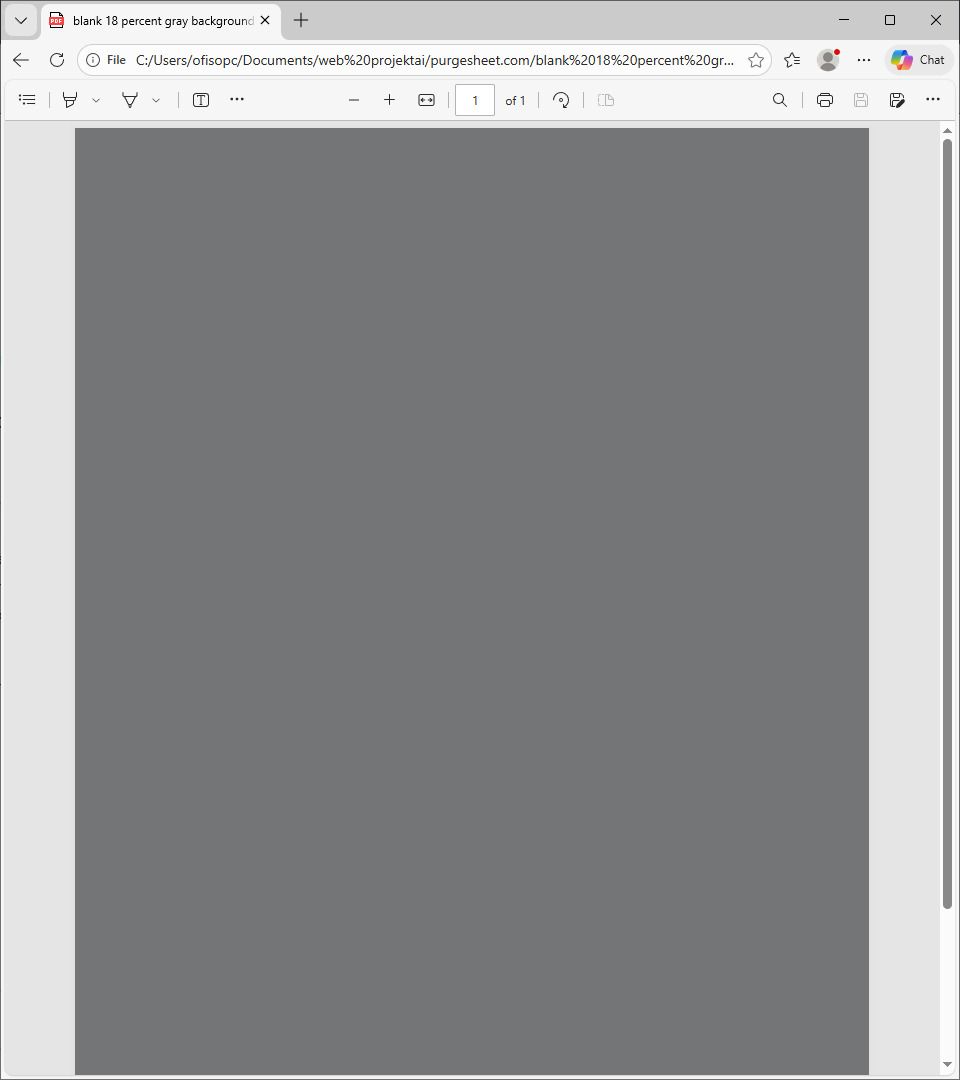
Blank 18% gray Test Page (PDF) has solid gray background adjusted to 18% gray color in CMYK
Click download button below to get the PDF file template.
Printable PDF page preview:
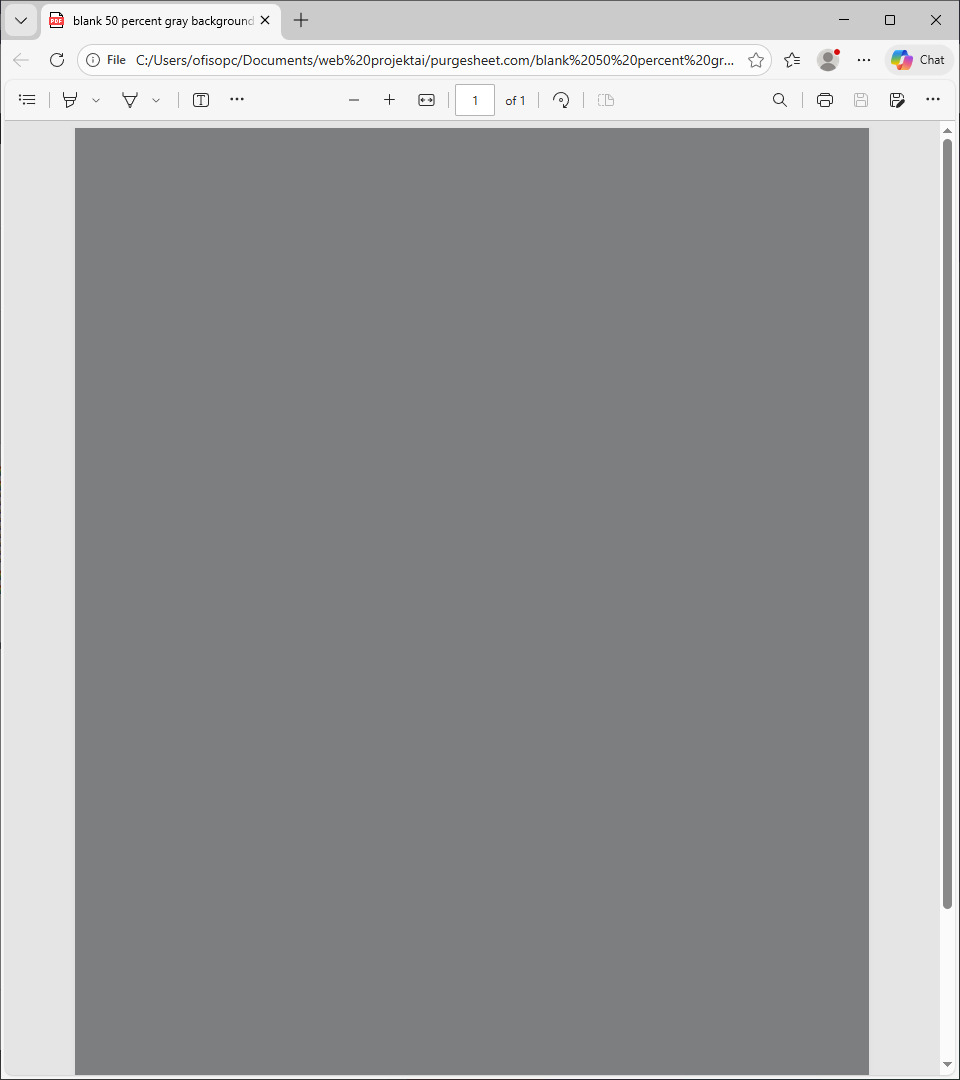
Blank 50% gray Test Page (PDF) has solid gray background adjusted to 50% gray color in CMYK
Click download button below to get the PDF file template.
Pro-Tip: Don’t Skip the Details! To get the best results, make sure you are printing the actual PDF file and not the preview image (JPG). A JPG won't have the color accuracy needed for a proper calibration, so following the steps is key!
Take your time and follow the instructions - these tools are designed to save your printer, but they only work if used as intended. Still feeling stuck or confused? Don't worry - just contact us online, and we'll help you get back on track.
Step 1: Preparation & Printing
- Settings matter: Print this PDF at 100% scale (Actual Size). Do not use “Fit to Page,” as it can alter alignment and distort the test pattern.
- Quality check: Set the printer driver to Best or Photo mode. Avoid “Draft” or “Eco” modes, as these can conceal defects such as banding and density loss.
- Media type: Confirm the selected paper type (e.g., “Plain Paper,” “Glossy Photo”) matches the paper in the tray. Mismatched media settings are a common cause of color shifts.
Step 2: Diagnosis & Evaluation
- Identify defects: Inspect the output for horizontal banding (white lines), streaks, or fuzzy text.
- Inkjet printers: Defects often indicate a clogged nozzle. Run a nozzle check and a cleaning cycle.
- Laser printers: Defects may indicate a dirty drum, contamination, or low toner density.
- Color accuracy: Compare printed gradients to the on-screen file. Displays (RGB) emit light while prints (CMYK) reflect it, so minor variance is expected. However, a missing channel (e.g., no Yellow) indicates a fault requiring immediate maintenance.
Step 3: Maintenance Best Practices
- Routine use: Inactivity is a leading cause of failure. Ink can dry and settle over time, increasing the risk of clogs and inconsistent output.
- Preventive testing: Print a CMYK Test Page at least once per week to keep ink flowing and to maintain a consistent reference baseline.
- Storage conditions: Keep the printer in a stable environment, away from heat, dust, and humidity to protect printheads, rollers, and toner drums.
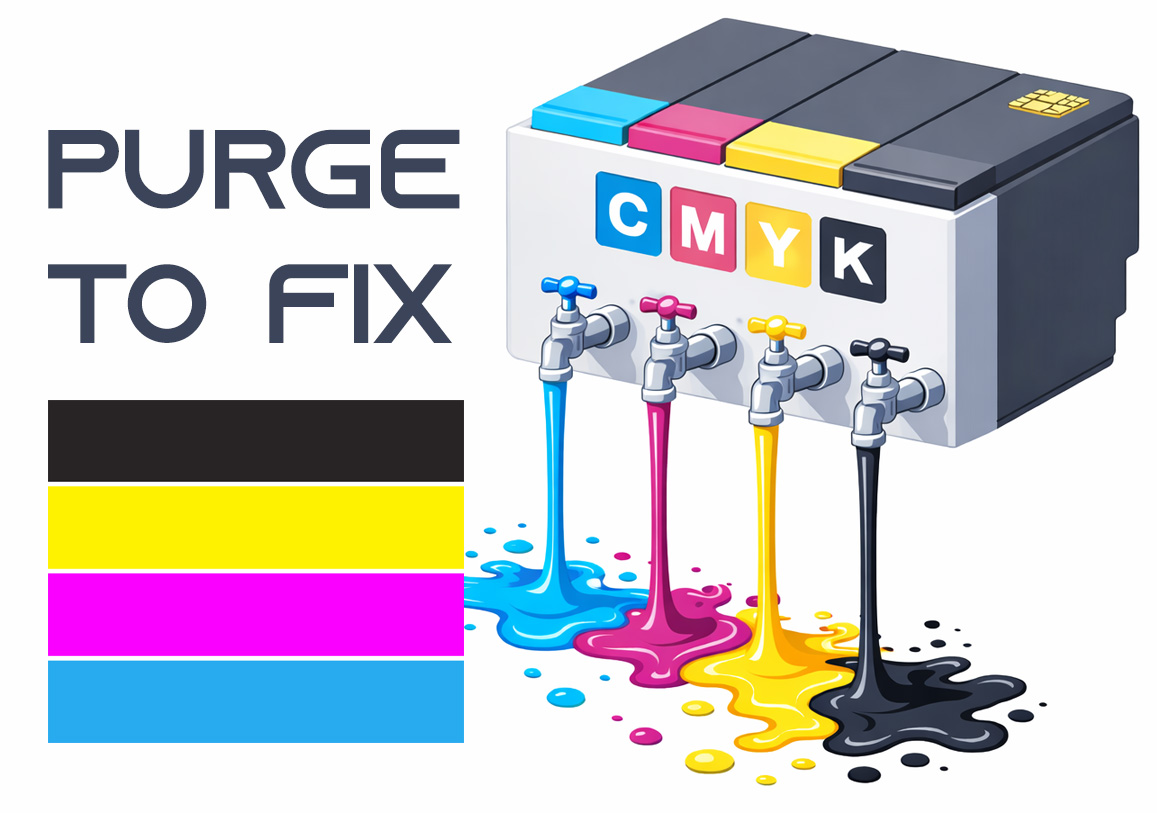
Purge to Fix
Printing a purge sheet can restore print quality and eliminate the need for a professional service visit. This DIY maintenance routine is highly effective for clearing clogged nozzles and dried ink buildup that causes horizontal banding or missing colors. While not a 100% fix for mechanical failure, it is the best first step for ink flow issues.