Try this!
Add custom text to your purge sheet for easier labeling and archiving. Include a date, printer name, or short note to keep your maintenance records organized and make past test sheets easier to identify.
There’s no need to mark each page by hand. Just create a labeled sheet in advance with notes like “Lobby printer – Jan 15”, “Reception printer before cleaning”, “Upstairs printer”, or “Jennifer’s printer”.
Choose the purge sheet by affected ink
Not sure which one to print first? Start with the guided purge print page, then come back to the matching color sheet.
Read the printer’s own wording
- Epson: Nozzle Check → Print Head Cleaning → Power Cleaning
- Canon: Nozzle Check → Cleaning → Deep Cleaning → Ink Flush / Replace Ink in Print Head
- Brother: Print Quality Check → Print Head Cleaning → Special / Strong Cleaning
- HP: Print Quality Diagnostic Page → Clean Printheads → Align Printheads
Stop and reassess if the printer asks for a long wait, reports a printhead / maintenance error, or the nozzle pattern does not change after the heavy-clean step.
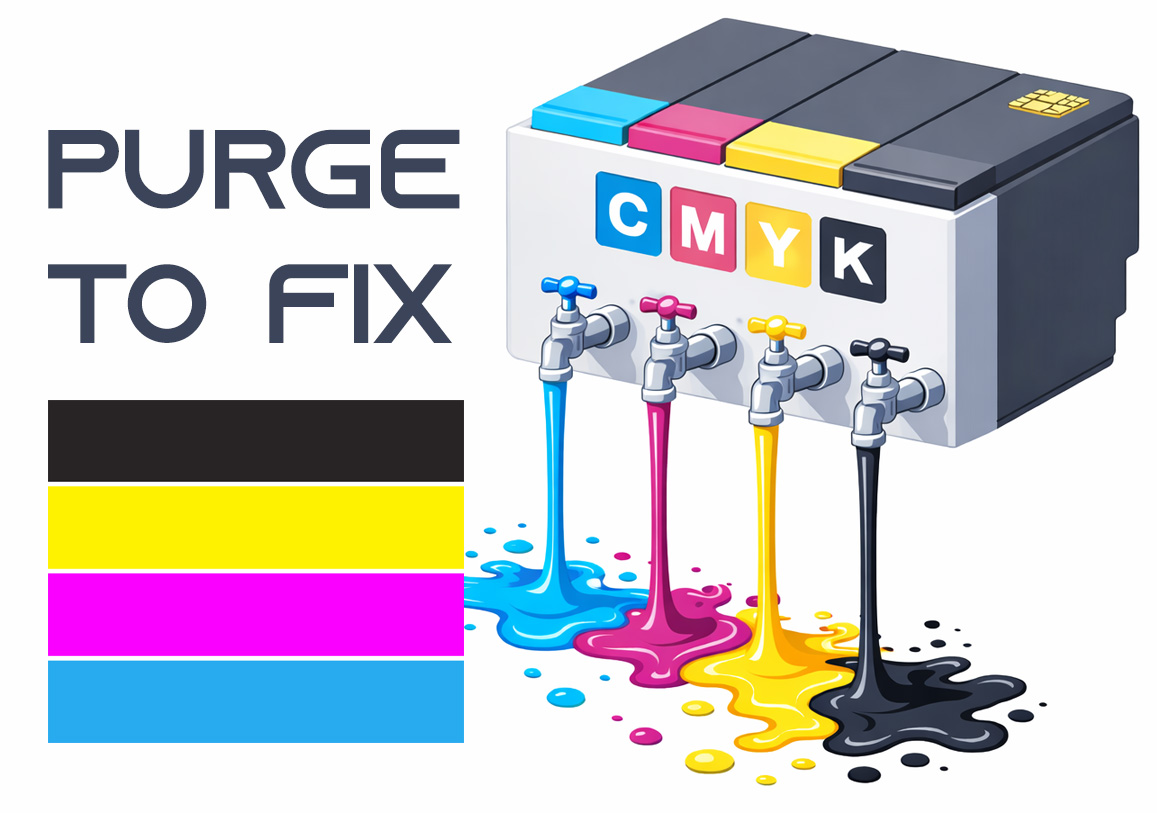
Purge to Fix
Printing a purge sheet can restore print quality and eliminate the need for a professional service visit. This DIY maintenance routine is highly effective for clearing clogged nozzles and dried ink buildup that causes horizontal banding or missing colors. While not a 100% fix for mechanical failure, it is the best first step for ink flow issues.