How to Use Purge Sheets
Before you start
- Make sure your printer is an inkjet model.
- Confirm there is enough ink in the affected cartridge or tank.
- Use plain paper and make sure the printer can print a normal page.
- Run a nozzle check first if your printer offers one.
Step-by-step
- Identify the problem color. Look for missing black, cyan, magenta, or yellow lines, faded areas, or banding.
- Choose the right purge file. Start with the most targeted file available instead of a full mixed-color page.
- Print at normal or high quality. Higher quality can help exercise the affected nozzles more consistently.
- Inspect the result. Look for cleaner blocks, stronger lines, or fewer gaps.
- Re-test. Print a nozzle check or small color sample after each attempt.
- Repeat only if the result is improving. A few controlled prints are better than long runs that waste ink.
Best results with less ink
- Use targeted purge pages before full-color pages.
- Do not chain many cleaning cycles and many purge pages together without checking progress.
- If one color is the problem, do not overuse the other channels.
- Let the printer rest briefly between attempts if output is unstable.
When purge sheets are not enough
If there is no visible improvement after a few tries, the issue may be deeper than a light clog. At that point, a manual printhead cleaning, fresh consumables, or service may be the better next step.
Important: Purge sheets are mainly for inkjet maintenance. They are not a universal fix and they are not intended for laser printer toner issues.
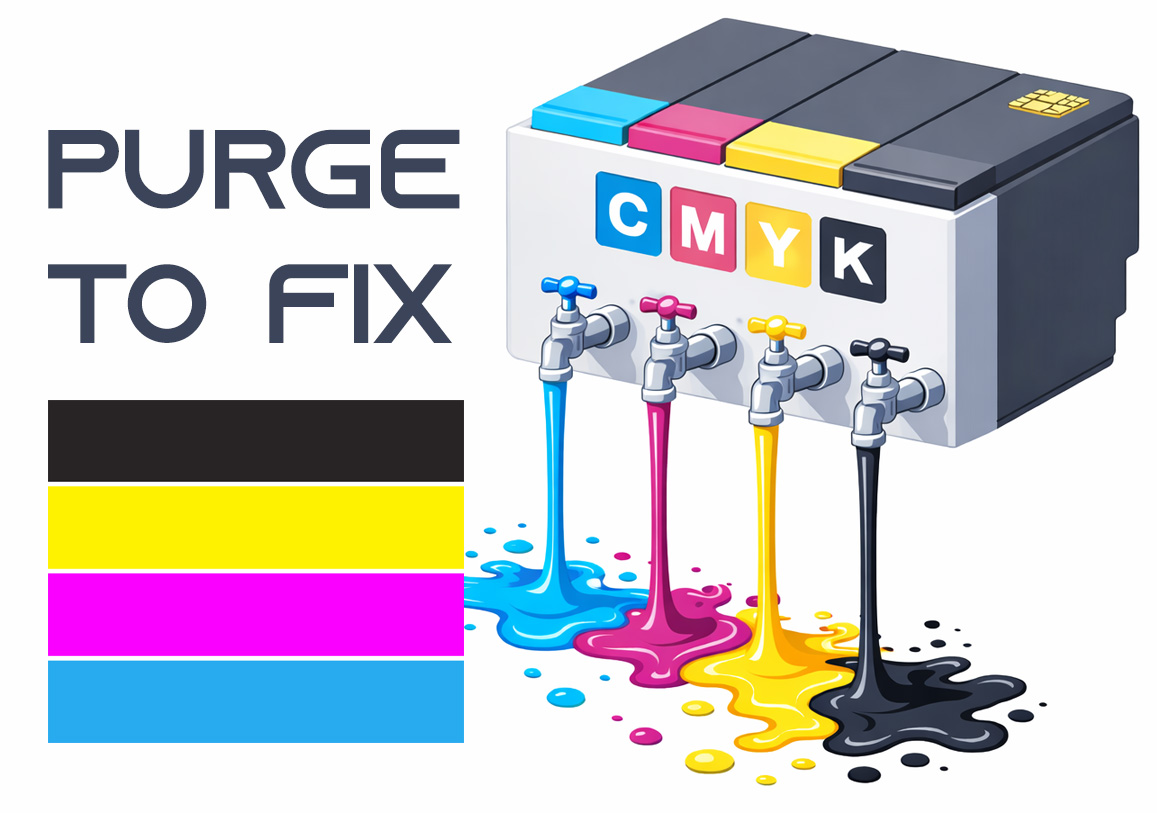
Purge to Fix
Printing a purge sheet can restore print quality and eliminate the need for a professional service visit. This DIY maintenance routine is highly effective for clearing clogged nozzles and dried ink buildup that causes horizontal banding or missing colors. While not a 100% fix for mechanical failure, it is the best first step for ink flow issues.